Skip to Content
Odoo Menu
  • Sign in
  • Try it free
  • Apps
    Finance
    • Accounting
    • Invoicing
    • Expenses
    • Spreadsheet (BI)
    • Documents
    • Sign
    Sales
    • CRM
    • Sales
    • POS Shop
    • POS Restaurant
    • Subscriptions
    • Rental
    Websites
    • Website Builder
    • eCommerce
    • Blog
    • Forum
    • Live Chat
    • eLearning
    Supply Chain
    • Inventory
    • Manufacturing
    • PLM
    • Purchase
    • Maintenance
    • Quality
    Human Resources
    • Employees
    • Recruitment
    • Time Off
    • Appraisals
    • Referrals
    • Fleet
    Marketing
    • Social Marketing
    • Email Marketing
    • SMS Marketing
    • Events
    • Marketing Automation
    • Surveys
    Services
    • Project
    • Timesheets
    • Field Service
    • Helpdesk
    • Planning
    • Appointments
    Productivity
    • Discuss
    • Approvals
    • IoT
    • VoIP
    • Knowledge
    • WhatsApp
    Third party apps Odoo Studio Odoo Cloud Platform
  • Industries
    Retail
    • Book Store
    • Clothing Store
    • Furniture Store
    • Grocery Store
    • Hardware Store
    • Toy Store
    Food & Hospitality
    • Bar and Pub
    • Restaurant
    • Fast Food
    • Guest House
    • Beverage Distributor
    • Hotel
    Real Estate
    • Real Estate Agency
    • Architecture Firm
    • Construction
    • Estate Management
    • Gardening
    • Property Owner Association
    Consulting
    • Accounting Firm
    • Odoo Partner
    • Marketing Agency
    • Law firm
    • Talent Acquisition
    • Audit & Certification
    Manufacturing
    • Textile
    • Metal
    • Furnitures
    • Food
    • Brewery
    • Corporate Gifts
    Health & Fitness
    • Sports Club
    • Eyewear Store
    • Fitness Center
    • Wellness Practitioners
    • Pharmacy
    • Hair Salon
    Trades
    • Handyman
    • IT Hardware & Support
    • Solar Energy Systems
    • Shoe Maker
    • Cleaning Services
    • HVAC Services
    Others
    • Nonprofit Organization
    • Environmental Agency
    • Billboard Rental
    • Photography
    • Bike Leasing
    • Software Reseller
    Browse all Industries
  • Community
    Learn
    • Tutorials
    • Documentation
    • Certifications
    • Training
    • Blog
    • Podcast
    Empower Education
    • Education Program
    • Scale Up! Business Game
    • Visit Odoo
    Get the Software
    • Download
    • Compare Editions
    • Releases
    Collaborate
    • Github
    • Forum
    • Events
    • Translations
    • Become a Partner
    • Services for Partners
    • Register your Accounting Firm
    Get Services
    • Find a Partner
    • Find an Accountant
    • Meet an advisor
    • Implementation Services
    • Customer References
    • Support
    • Upgrades
    Github Youtube Twitter Linkedin Instagram Facebook Spotify
    +1 (650) 691-3277
    Get a demo
  • Pricing
  • Help

Odoo is the world's easiest all-in-one management software.
It includes hundreds of business apps:

  • CRM
  • e-Commerce
  • Accounting
  • Inventory
  • PoS
  • Project
  • MRP
All apps
You need to be registered to interact with the community.
All Posts People Badges
Tags (View all)
odoo accounting v14 pos v15
About this forum
You need to be registered to interact with the community.
All Posts People Badges
Tags (View all)
odoo accounting v14 pos v15
About this forum
Help

How can I configure 3 shifts per day in Odoo 17?

Subscribe

Get notified when there's activity on this post

This question has been flagged
4 Replies
4598 Views
Avatar
Will A

I'm trying to set up a company that currently has 3 working shifts,

Shift 1: 0600-1400 hours

Shift 2: 1400-2200 hours

Shift 3: 2200-0600 hours

All shifts work 8 hours. A paid half hour lunch does not need to be identified as a break.


Currently Odoo by default only allows for a morning and afternoon shift, with another option for a break that I wont use. Only my morning and afternoon shifts, shifts 1 and 2, can be set up with templates. How do I account for the third shift? Is there a way to set up an evening shift either in base or in Studio that doesn't require I write some code? I can't be the only one that has a company that operates off of 24 hour operations.


Thanks

0
Avatar
Discard
faOtools

Maybe this app - https://apps.odoo.com/apps/modules/18.0/itlibertas_timesheet - will partially solve the challenge.

Will A
Author

Thanks faOtools, but I am trying to do this in version 17. I appreciate the link! I'll keep it in mind for V18.

Avatar
Will A
Author Best Answer

Hi All, I did end up coming finding a work-around. Unfortunately, I am not able to use the shift templates as I had hoped. Hopefully a future version of Odoo will allow us to configure 24-hour operations in the shift templates. 

What I ended up doing was completely ignoring the shift templates and manually inputting the shifts in the Planning app. This is a lot more manual work than I would like to do but it will work for now. 

I was able to make the process quicker by using the duplicate feature, i.e. pressing the ctrl button and then dragging the scheduled shift to the next line. I was then able to repeat this every week since the shift will stay the same as long as they work here. 

What I don't like now is that Odoo automatically changes the hours based on when Daylight Savings begins and ends. One more thing to try to figure out. I'll do my own preliminary research before asking for help here though.

---UPDATE---

While looking at the Planning documentation, I noticed it says, "Company working hours: Are taken into account when assigning shifts to employees or materials." This was specifically talking about when resources could be used, but I thought I would try updating the company working hours and not just the employee working hours. This may have been what Saif Sabri's AI-generated response may have been hinting at, but it wasn't specific enough to get me to the finish line. 

I updated the company working hours to 2 different shifts (morning/afternoon) covering a full 24 hours. I then went back and tried creating shift templates for the three different shifts and didn't have a single issue! Time worked and end of shift all calculated exactly as I hoped it would. I was then able to use these shift templates for planning purposes and had no issues. 

So, to sum up...

If you want to enable 24-hour Ops, go to Settings → Employees → Company Working Hours, and then create a Company Working Hour schedule that covers the time period that your company actually has employees at the facility working to be able to set up those shift templates. 

0
Avatar
Discard
Avatar
Saif Sabri
Best Answer

My response was crafted with AI assistance, tailored to provide detailed and actionable guidance for your query.

In Odoo 17, you can configure multiple shifts for a 24-hour operation by customizing the Working Hours and Shifts settings. While Odoo's default setup allows for morning and afternoon shifts, you can extend this to include a third shift (evening/night shift) without writing custom code. Here's how you can do it:

Step 1: Configure Working Hours

  1. Go to Settings > Employees > Working Hours.
  2. Create a new working time entry:
    • Name: 24-Hour Operation
    • Set the working hours for each shift:
      • Shift 1: 06:00 to 14:00
      • Shift 2: 14:00 to 22:00
      • Shift 3: 22:00 to 06:00 (next day)
  3. Save the working hours configuration.

Step 2: Create Shift Templates

  1. Go to Employees > Configuration > Shifts.
  2. Create three shift templates:
    • Shift 1 Template:
      • Name: Shift 1 (06:00-14:00)
      • Working Hours: Select the 06:00-14:00 time slot.
    • Shift 2 Template:
      • Name: Shift 2 (14:00-22:00)
      • Working Hours: Select the 14:00-22:00 time slot.
    • Shift 3 Template:
      • Name: Shift 3 (22:00-06:00)
      • Working Hours: Select the 22:00-06:00 time slot.

Step 3: Assign Shifts to Employees

  1. Go to Employees > Employees.
  2. Select an employee and assign them to a shift:
    • Under the Work Information tab, set the Working Hours to the appropriate shift template (e.g., Shift 1 (06:00-14:00)).
  3. Repeat this for all employees, assigning them to their respective shifts.

Step 4: Handle the Night Shift (22:00-06:00)

For the night shift (Shift 3), Odoo will automatically handle the transition to the next day. Ensure that:

  • The working hours for Shift 3 are set as 22:00-06:00.
  • The system recognizes the shift as spanning two days.

Step 5: Use Studio for Advanced Customization (Optional)

If you need more flexibility (e.g., adding shift-specific rules or fields), you can use Odoo Studio:

  1. Go to Settings > Technical > Studio.
  2. Customize the Shifts model to add fields like:
    • Shift-specific pay rates.
    • Shift-specific attendance rules.
  3. Save your changes and test the new configuration.

Step 6: Test the Configuration

  • Go to Attendances and check if the shifts are correctly logged.
  • Ensure that employees can clock in and out according to their assigned shifts.

Key Notes

  • Odoo's default setup does not natively support three shifts, but by creating custom working hours and shift templates, you can achieve this.
  • If you need more advanced features (e.g., automated shift scheduling), consider using the Odoo Shifts module or a third-party app from the Odoo App Store.

By following these steps, you can configure three shifts per day in Odoo 17 without writing custom code.


1
Avatar
Discard
Will A
Author

Thanks Saif Sabri for the AI answer, but version 17 will not let me set working hours to automatically cross from one day to the next. I might have to work with my team to write some code for this to happen.

Avatar
Cybrosys Techno Solutions Pvt.Ltd
Best Answer

Hi,

Please refer to the following links:

1. https://www.youtube.com/watch?v=xNf23Lv-Viw

2. https://www.youtube.com/watch?v=Xj9DGgQQ_t0

3. https://www.youtube.com/watch?v=o6BPck13VeU

4. https://www.cybrosys.com/blog/how-to-manage-plan-and-access-shift-in-odoo-16-planning-app

5. https://www.cybrosys.com/blog/how-to-manage-employee-schedules-with-odoo-17-planning-app


Hope it helps.

0
Avatar
Discard
Avatar
Marcin Pieczyński
Best Answer

Hi Every Body

I have also face the same problem. Your solution looks good.
But  I was unable to obtain the same result in Odoo 16-18.
To be precise, I was unable to introduce w shift overnight  from 22pm to 6 am (22:00 - 6:00 next day)
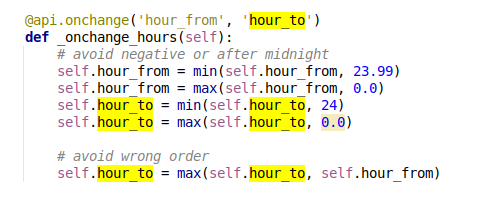
In Odoo core code there is a method which check if  hour_to is after hour_from, if its not, hour_to is changed.
So, when I have introduced shift from 22:00, and tried to put hour_to (6:00) Odoo automatically changed hour_to to 22.
I don't see possibility to mark this shift as 'overnight' or with the end in the next day.

How Odoo is able to recognize that the shift is spanning two days?

Below code comes from Odoo16, and is the same in Odoo18.


Marcin Pieczyński

0
Avatar
Discard
Enjoying the discussion? Don't just read, join in!

Create an account today to enjoy exclusive features and engage with our awesome community!

Sign up
Community
  • Tutorials
  • Documentation
  • Forum
Open Source
  • Download
  • Github
  • Runbot
  • Translations
Services
  • Odoo.sh Hosting
  • Support
  • Upgrade
  • Custom Developments
  • Education
  • Find an Accountant
  • Find a Partner
  • Become a Partner
About us
  • Our company
  • Brand Assets
  • Contact us
  • Jobs
  • Events
  • Podcast
  • Blog
  • Customers
  • Legal • Privacy
  • Security
الْعَرَبيّة Català 简体中文 繁體中文 (台灣) Čeština Dansk Nederlands English Suomi Français Deutsch हिंदी Bahasa Indonesia Italiano 日本語 한국어 (KR) Lietuvių kalba Język polski Português (BR) română русский язык Slovenský jazyk slovenščina Español (América Latina) Español ภาษาไทย Türkçe українська Tiếng Việt

Odoo is a suite of open source business apps that cover all your company needs: CRM, eCommerce, accounting, inventory, point of sale, project management, etc.

Odoo's unique value proposition is to be at the same time very easy to use and fully integrated.

Website made with

Odoo Experience on YouTube

1. Use the live chat to ask your questions.
2. The operator answers within a few minutes.

Live support on Youtube
Watch now